Frequently Asked Questions (FAQs)
Written By Envisage Support
Last updated 20 days ago
Q: What do the symbols on my events & days in Scheduler mean?
A: See the Symbols/Icons tab for further clarification.
Q: I’ve added allocations to my project, but I can’t seem to add users to that allocation. How do I add users to an allocation under a bid?
A: Users will need to be added to ‘Departments’ within the project itself before they can be assigned to an allocation. Add the relevant departments, then add the users to those departments.
Q: How do I link my Google Calendar to Scheduler?
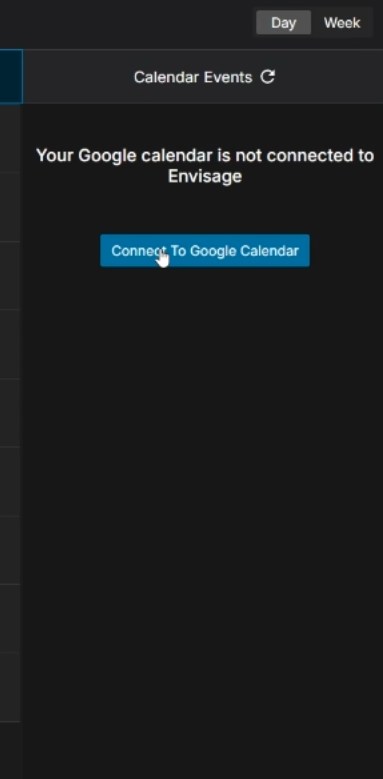
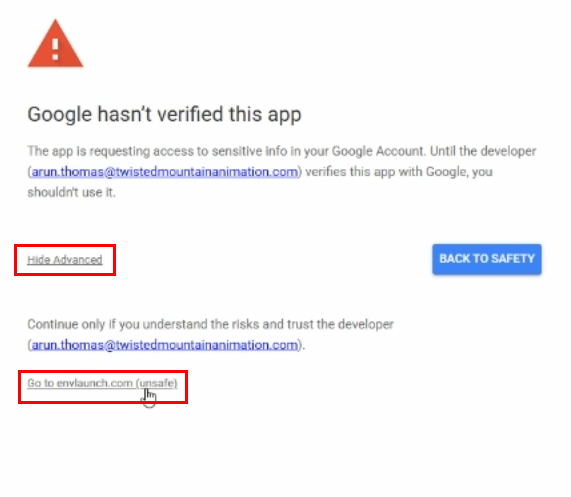
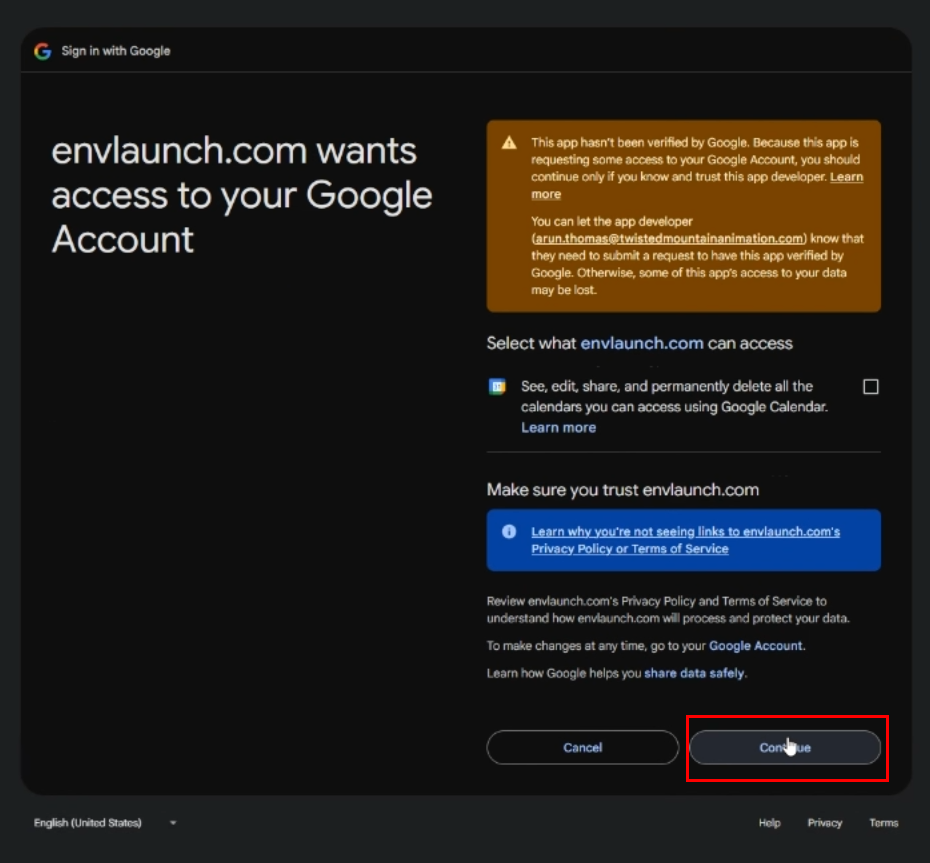
A: When entering Day view in Workspace > Scheduler, the user will get prompted to Connect to Google Calendar. Follow the steps outlined in the images below. Envisage is currently not verified by Google, so for the time being, users will have to bypass some additional security screens.
Click Connect to Google Calendar
Confirm safety verifications via Google
Connect Google account with envlaunch.com
Q: I’ve created a project, budget, bid, and allocations under that project. Why can’t I see any allocations in the dropdown menu for that project in the Scheduler view?
A: The allocation visibility is filtered out based on user assignees. This can be alleviated by navigating to the ‘Projects’ tab, finding the relevant bid, and adding the affected user to the ‘Users’ section of the appropriate allocation. If the user still isn’t able to see the allocation in Scheduler, management likely needs to set the status of the affected bid to ‘Approved’. Bids with statuses of ‘ Not Started’, ‘In Progress’, or ‘Revision’ are still considered planning stages, so users will not be able to allocate their time to these bids until the bid is ‘Approved’ and active.
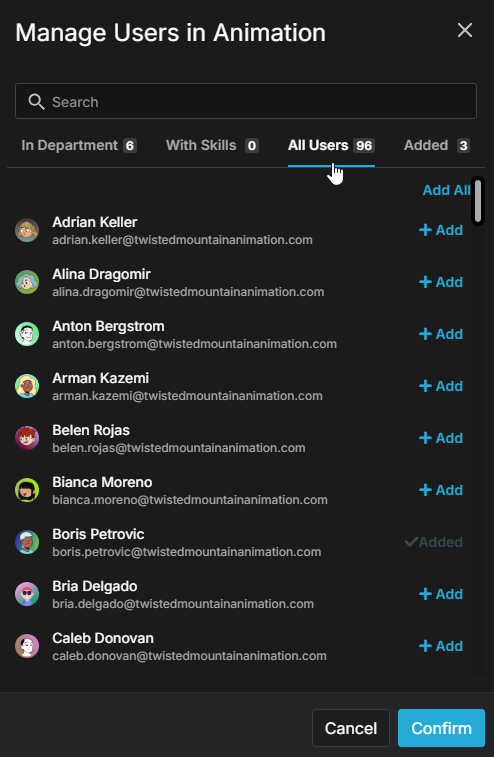
Q: Why don’t I see any users when trying to add users to a project’s department?
A: Users must first be mapped to the appropriate department using the Department-User Map. Alternatively, any other desired users can be added by navigating to the ‘All Users’ tab of the Manage Users modal, as seen below.